








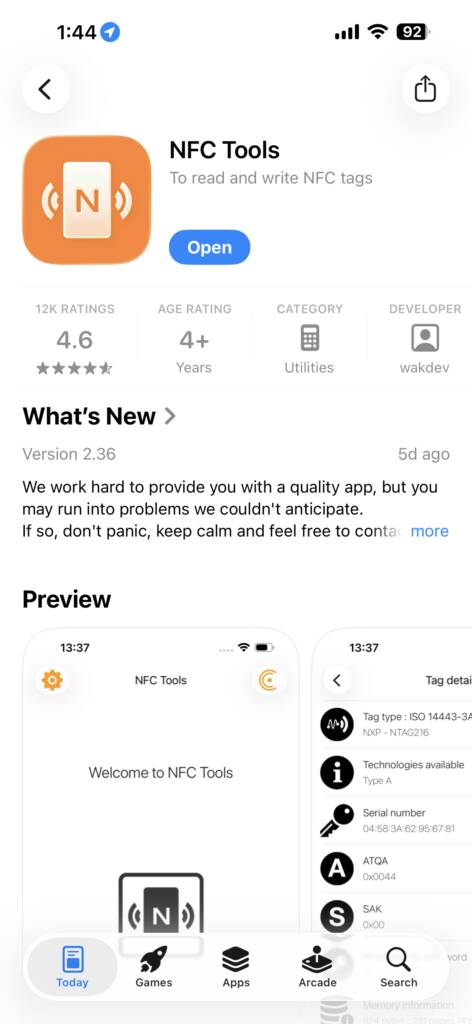
Our first step is to download free “NFC Tools” and open it. Easy, next step.
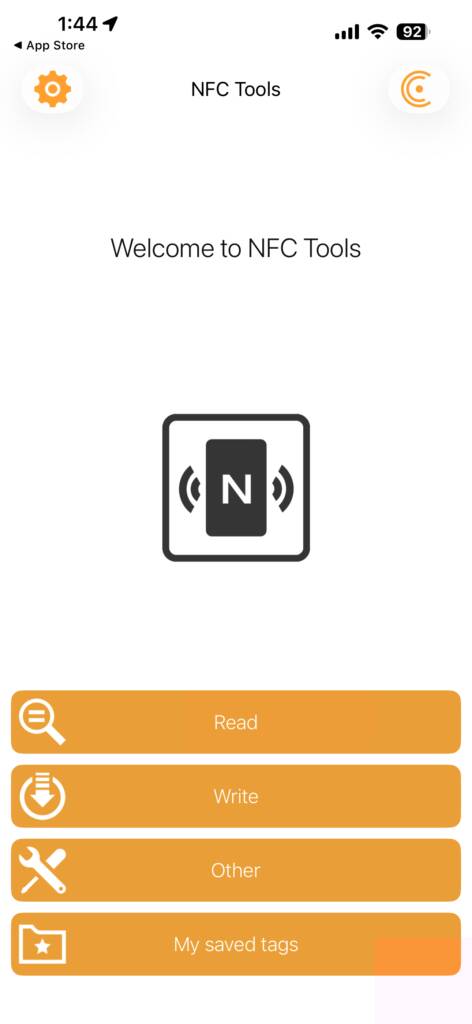
After opening the app you will be greeted with this home page. Click “Write” to move on to the next step.
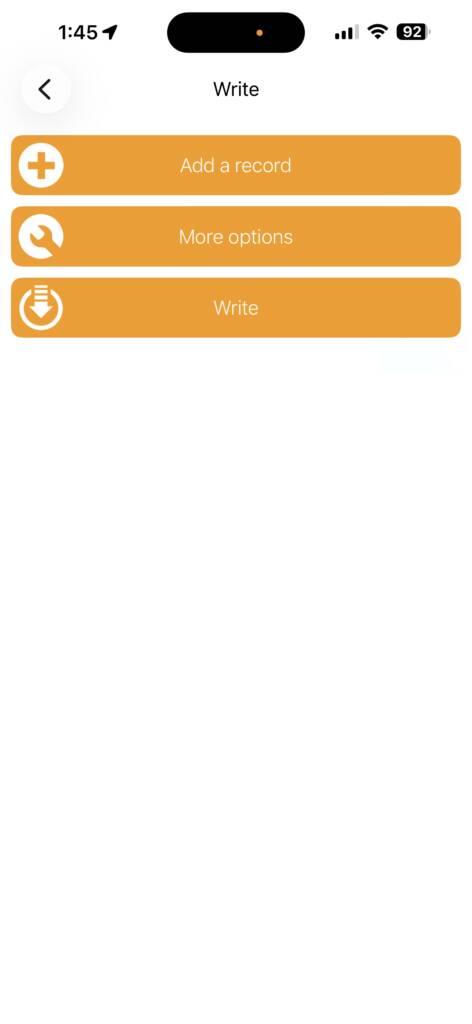
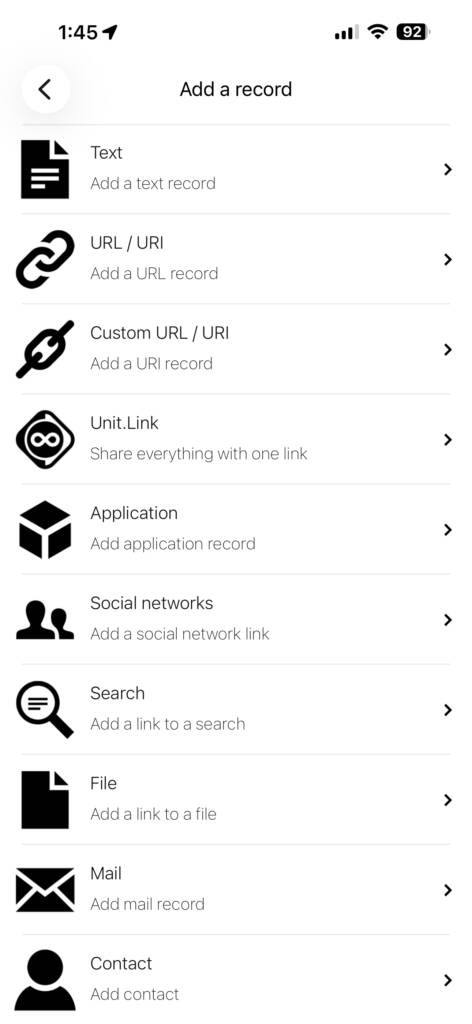
Here, you will see a page with three options. Click the first option “Add A Record” to move on to step four.
NOTE** The Other options do not work on all phones, ONLY use “Custom URL” to ensure your Tap Tag will work everywhere. Do not use the Contact Option**
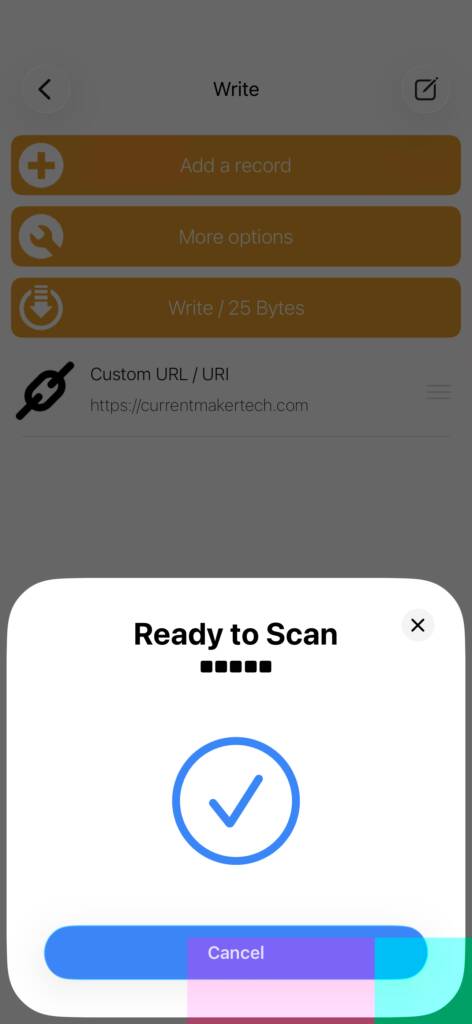
**NOTE: Smartphones only understand one single link, adding multiple items here will not work. To get the most out of your NFC Tag, you can make a free personal landing page containing infinite links or a contact card.

– View the image to ensure your are holding the NFC tag to the right spot on your smartphone.
– Make sure your screen is unlocked
– Hold Tap Tag to scan area for at least one second
– For android, ensure NFC is turned ON in settings (near bluetooth and wifi)
Smartphone Compatibility for NFC tap feature
Roughly 97% of smartphones from 2018 or newer have native NFC out of the box with not app required whatsoever.
Iphone XS, XR, 11, 12, 13, 14, 15, 16 and newer (2018 and newer)
iPhone 8 & iPhone X running iOS 14( iOS released September 2020) Additional step to read NFC may be required.
Samsung Galaxy S5, S6, S7, S20, S21, S22, S23 and newer (2015) Full Samsung List
Galaxy Notes 2015 and newer
Google Pixel 1, 2, 3, 4, 5, 6, 7. 8 and newer
Huawei P10, P20 and Newer
Xiaomi Mi5 and newer
LG G3, Q6, K10, G6, V35 and newer
Sony Xperia XZ1 and newer
HTC One M9 and newer
Not all compatible phones are on this list, some lesser known models may have NFC.